
Manual · Chapter 4
Structural: mesh to modes
One path, six steps: geometry in, a mesh you have checked, a material, boundary conditions, a solve, a result you can defend.
1 · Getting geometry in
Everything starts at File ▸ Import Geometry… (STEP/IGES/STL/OBJ). What you get depends on the format:
| STEP / IGES | A real CAD solid carrying its own unit. It can be volume-meshed, re-meshed and healed. The rest of this chapter assumes it. |
|---|---|
| STL / OBJ | A triangulated surface with no unit inside the file, so inWaves asks you for one on import. It cannot be volume-meshed or re-meshed. |
The part lands under Scene parts. The properties panel gives node and triangle counts, the volume mesh state and whether a CAD solid came with it.
Before you mesh, run Mesh ▸ Surface Health: Closed (watertight), Boundary edge (hole), Winding consistency, Disconnected shell, Surface area, Sealed volume. The surface is closed: fit for volume meshing means go ahead. The surface cannot be volume-meshed sends you to Findings, usually holes or unjoined shells.
A display shell that looks closed can still resist tetrahedralisation, through sliver faces and micro-features. Heal and Mesh then merges tiny edges and faces through OpenCASCADE and skips detail below the element size.
2 · Meshing, and checking what you got
The mesh has to place enough nodes along the shortest wavelength you care about. Too few and the model comes out artificially stiff.
Ask for a size. Mesh ▸ Size from Frequency… takes a Target upper frequency (default 2000 Hz) and Nodes per wavelength (default 10), and returns a size in metres. The wavelength comes from the part's material, from the shear wave. Assign a material first (step 3), or there is nothing to compute from.
Generate the mesh. Mesh ▸ Generate Volume Mesh… picks the CAD parts to mesh, then asks for one Element size (0 = gmsh automatic) in millimetres for all of them. gmsh does the volume meshing and is installed separately; if it is missing, the button says so.
Look at what came out. Mesh ▸ Show Volume Mesh draws it. Delete Volume Mesh undoes the step without touching the CAD.
With no CAD, Mesh ▸ Create Box Part… makes a meshed block from dimensions and division counts. The Element shape is chosen only here, Tetrahedral: every mesh tool works (default) or Hexahedral, markedly more accurate in bending (FV52: HEX2 −1.6% / P2 tet +18.4%), and it cannot be changed afterwards.
The three reports, and what to do with each
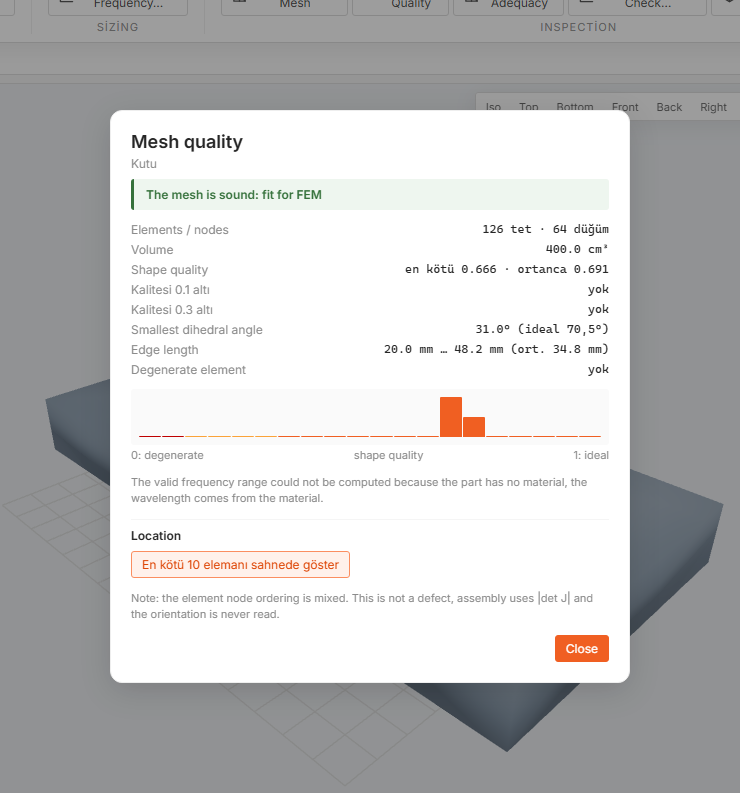
Mesh Quality judges element shape: Shape quality (worst and median), Smallest dihedral angle against the ideal 70.5°, Edge length and Degenerate element. A verdict of The mesh is defective: fix it before solving means stop. Re-mesh smaller, or heal the CAD first. The Location section draws the worst elements in the 3D scene.
The same report answers Up to what frequency is this mesh valid? from the mesh's edge lengths and the material's shear wave speed, with the Criterion used (element order × nodes per wavelength), Typical (mean edge) and Coarsest region. Treat it as a ceiling on the modes you can trust; the solver returns modes above it anyway.
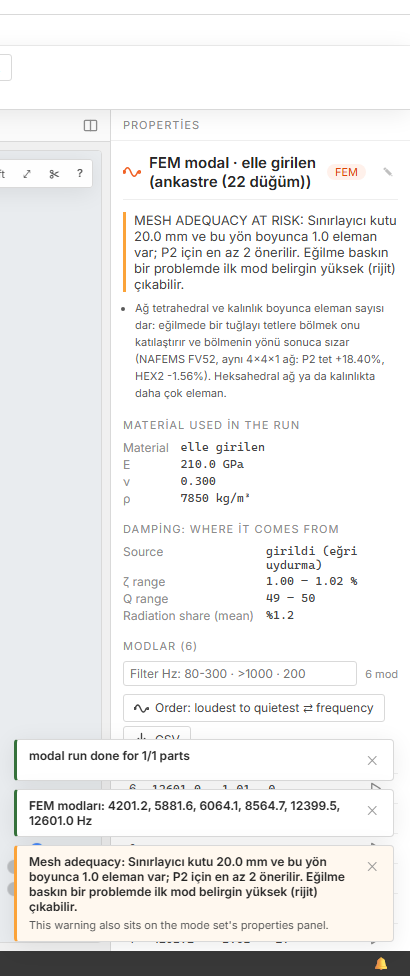
Mesh Adequacy asks whether the mesh can carry bending. A perfectly shaped mesh with one element through a wall cannot. It reports the Thin direction, Elements through the thickness against the recommended minimum, and the Largest aspect ratio. A verdict of Bending adequacy AT RISK: the answer may come out stiffer than it is gives the direction of the error. It also covers hexahedral meshes, which the quality report does not.
The convergence check, and why the mesh-level choice matters
Mesh ▸ Convergence Check… answers "how much of this number is the mesh". It solves on the present mesh, then on a finer one, and extrapolates to zero element size. The gap between the fine mesh and that value is the reported uncertainty. The refined mesh only lives in memory; your project is untouched.
The field that changes the answer is Mesh levels:
| 2 meshes: the order is ASSUMED (safety factor 3.0) | Two solves. The convergence rate is taken to be the element's theoretical order. Cheaper, with a band three times wider. |
|---|---|
| 3 meshes: the order is MEASURED (safety factor 1.25) | Three solves. The rate is measured from the three results, so the safety factor drops from 3.0 to 1.25. Same error, reported about three times more tightly. |
The result shows Convergence order p (with its source and the theoretical value beside it), Safety factor (GCI), Realised mesh ratio and a Per mode table with coarse [Hz], fine [Hz], diff %, f→0 [Hz] and error %. Modes are matched by frequency order, so two close modes can swap places between meshes. Read such a row with its neighbours. Above the Element ceiling (above it nothing is run) you get Not run: the refined mesh is above the cost ceiling.
3 · Materials
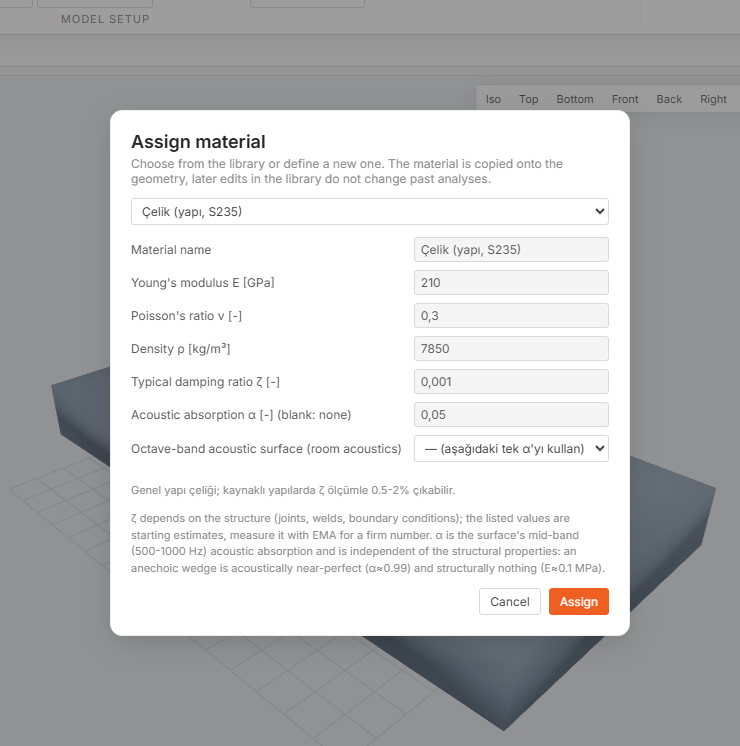
Select a part and press Assign Material…. There is a built-in library grouped by category, plus a Project-specific group for your own materials. The material is copied into the geometry, so editing the library later does not change past analyses.
| Young's modulus E [GPa] | Entered in GPa, stored in Pa. This is the only unit conversion in the dialog. |
| Poisson's ratio ν [-] | Dimensionless. 0.3 for a new material unless you change it. |
| Density ρ [kg/m³] | Sets the mass, so it sets the frequencies as much as E does. |
| Typical damping ratio ζ [-] | A starting estimate. ζ depends on joints and boundaries more than on the bulk material; measure it with a modal test if it matters. |
| Acoustic absorption α [-] (blank: none) | Mid-band (500–1000 Hz) absorption, used by the acoustic solvers. Independent of the structural values. |
Press Assign to apply. For an assembly meshed from several solids at once, use Mesh ▸ Region Material…: pick a Region, give it a material. The parts share nodes at their interfaces, so the assembly solves as one structure.
4 · Supports and loads
Both attach to a saved node selection, never to a click. Create one with Mesh ▸ Pick Node…: Select with a rectangle, Select with a brush, Select one by one (camera stays free), with Add to the selection and Remove from the selection (or Ctrl), then Save selection. Pick Face… does the same from a CAD face. Selections store node positions, so they survive a re-mesh.
Supports
Scene ▸ Add Support takes a Region and six checkboxes. Direction X (u_x = 0), Direction Y (u_y = 0) and Direction Z (u_z = 0) hold translation; Rotation X (θ_x = 0), Rotation Y (θ_y = 0) and Rotation Z (θ_z = 0) hold rotation. All six ticked is a full clamp, only Z ticked is a sliding support. The rotation boxes mean something only on beam and shell nodes; a solid node has no rotational degree of freedom. Leaving all three free turns a clamp into a pin.
Fill in Isolator stiffness [N/m] (empty = rigid) and the support becomes a spring to ground. The direction boxes lock, because the spring acts on every axis. Isolator loss factor η (empty = 0) adds damping.
Loads
| Add Force | Amplitude in N, spread over the region's nodes; a finer mesh does not change the total push. Force direction is an axis, Time history and Duration shape it in time. |
|---|---|
| Add Torque | Amplitude in N·m about the Torque axis, built as a force couple, so the region must be spread around the axis. |
| Add Pressure | Pressure in Pa on the region's surface. Leave Pressure direction at (surface normal: default) and each element uses its own normal; pick an axis for a fixed-direction traction. On a shell the target is the Patch, with (the patch's own normal: default). |
| Add Inertia Load | An Acceleration in m/s², not a force: it lands on every node in proportion to its mass, so there is no region to pick. Default 9.80665 m/s² along −z (down: gravity). For a manoeuvre case, multiply the g number by 9.80665. |
| Add Temperature Load | ΔT (relative to the stress-free state) in K, a difference rather than an absolute temperature, so K and °C give the same number. No direction field: expansion directions come from the material's own axes. Choose Uniform ΔT (single number) or Field (coordinate expression). On a shell, Through-thickness gradient (top − bottom, shell only) is separate physics: uniform ΔT is membrane strain, a gradient is curvature. |
Several loads on the same part superpose. Each lands as a row under the part, with its magnitude and unit.
5 · Solving
Simulation ▸ ▶ SOLVE asks What do you want to learn from this scene? Each card carries its method, its cost, and whether your scene can answer it. Tick as many as you want and press Solve; they run in the right order.
| At which frequencies does it vibrate? | Natural frequencies and mode shapes. Fast. Pre-selected when the scene has no mode set yet. |
| How much does it stress and deflect under load? | Displacement, stress field and support reactions, with the scene's loads applied together. Pre-selected as soon as a load exists. |
| Will this thin part buckle? | Linear eigenvalue buckling. |
| How does it respond across frequency? (FRF) | Modal superposition, so it depends on the modal run. With no mode set, the modal step runs first. |
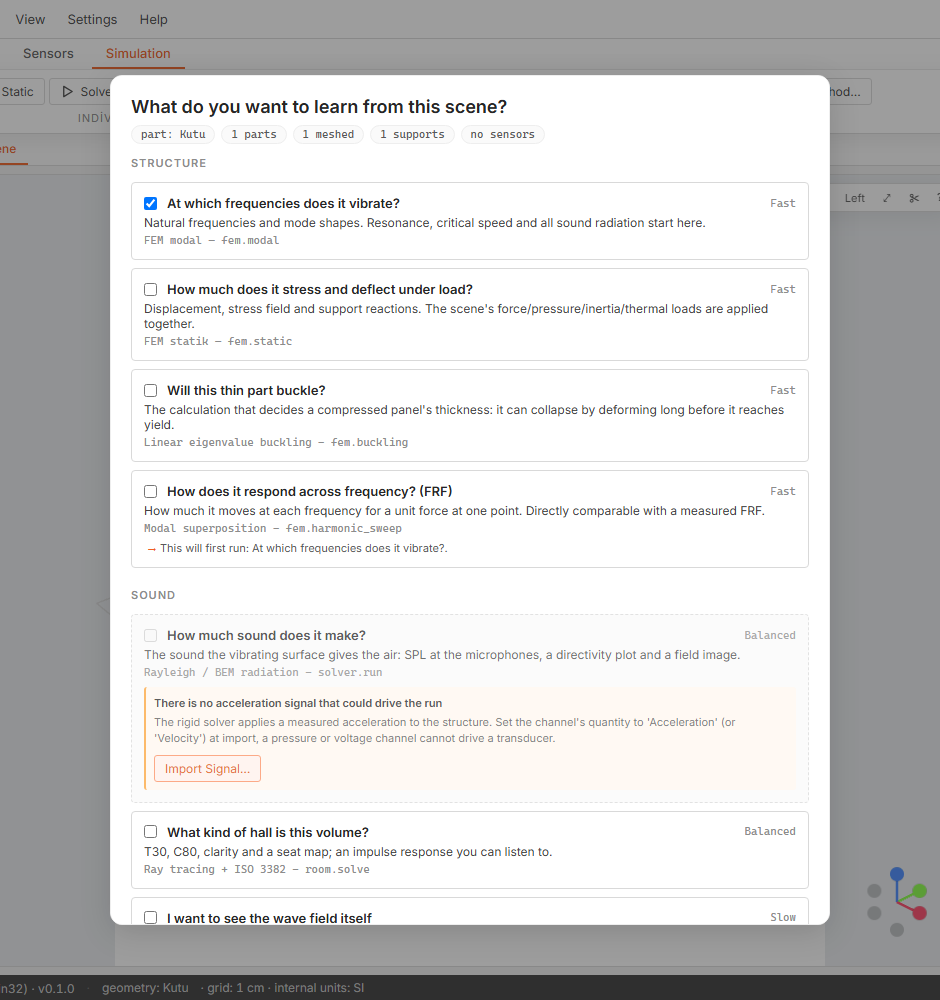
Tick Ask me for each step's settings (advanced) and every step opens its own dialog. The buttons under Individual solvers do the same one at a time, with full settings:
- Solve Modes → Modal run settings: Where the mode set ends (A fixed number of modes or Every mode up to a frequency), Element order, and Stress modes (nodal stress tensor). Asking for a band is usually the right call. Result: one mode set per part.
- Solve Static → Static solve, one option: Stress (shell fibre stress). It refuses to run without a support: rigid-body modes make the stiffness matrix singular. Result: a row under Static Analysis.
- Solve Buckling → Buckling solve, one option: Number of modes. It needs both a load and a support. Result: a mode set whose "frequencies" are load factors λ.
- FRF Sweep… → FRF sweep: a single-node Region, a Direction, Lower frequency / Upper frequency, Number of points, Frequency spacing (Logarithmic or Linear) and Modal damping ratio ζ. The answer is a chart with the peaks marked; nothing lands in the tree.
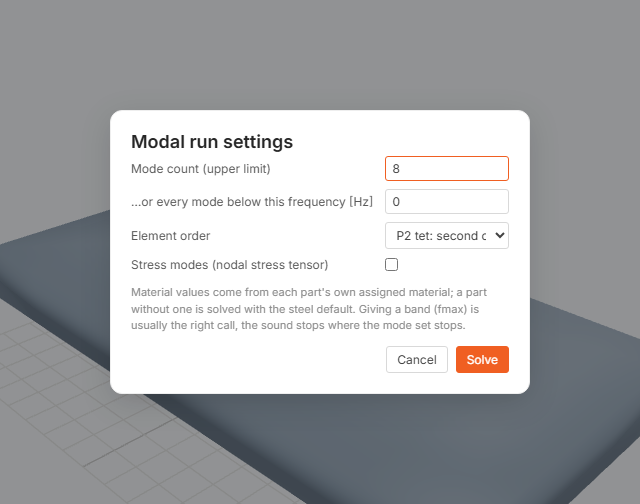
Element order is where a modal run silently gains or loses accuracy. Measured on the NAFEMS FV52 benchmark with the same 4×4×1 mesh: P2 tet: second order +18.4%, P1 tet: first order, locks in bending +67.0%, HEX2: 20-node serendipity −1.6%, HEX1I, incompatible-mode brick: cheap and good in bending −0.3% and HEX1: tri-linear brick, fast but locks in bending +13.5%.
6 · Reading the results
Select a mode set and the panel shows f [Hz], ζ [%] and a radiation [dB] column, Relative to the loudest mode, in decibels. Order: loudest to quietest ⇄ frequency switches the sort. The filter box accepts Filter frequency: 80-300, >1000, <100 or a single value. Animate plays one mode on the geometry, CSV exports the table.
Above the table, Material used in the run records what the solve used, which can differ from what is assigned now. Damping: where it comes from says whether ζ came from the mode shapes and the material's directional loss factors or from the number you typed. The mesh-adequacy verdict is repeated there.
A buckling set is different: the frequency column becomes λ [–], the header explains Critical load factor: at how many times the applied load it buckles, the panel is titled Buckling modes, and a warning line reads LINEAR BUCKLING: A PERFECT STRUCTURE WAS ASSUMED. λ < 1 means the structure has already buckled at this load; a negative λ means it buckles with the load reversed.
A static result reports peak displacement, peak von Mises stress, the total reaction, the model's mass and the solver residual. Check the reaction against the load you applied. For a FEM mode set, Harmonic Response (stress)… animates the stress field.
Beams and shells
The Structural members group on the Scene tab adds elements that carry their own geometry:
- Add Beam… is a Timoshenko chain with six degrees of freedom per node: Chain points, a Section profile and Divisions (elements in EVERY span of the chain). A whole frame or truss is one beam object, and a bending mode's accuracy rests on the division count.
- Add Shell… makes MITC4 patches from corners, a cylinder, a cone, a spherical cap or an explicit quad connectivity, with a Thickness t or Layers (bottom to top) for a laminate.
Give Part it welds to and the member fuses to the solid mesh where its points meet nodes. Leave it blank and it stands free, under Free-standing beams / shells.
Two more objects change a solid model without changing its mesh. Rigid Coupling… ties a node selection to one reference point: Reference point (blank = the selection's centroid) and Lumped mass at the reference (0 = none). Point Mass… puts a Mass on one node's three translations, with no rotary inertia and no lever arm.
Contact, plasticity, large deflection and damage are out of scope. The sharp edge is in shells: a thin plate deflecting on the order of its own thickness stiffens geometrically through membrane stress, so a linear solve systematically over-reads the deflection. The rough boundary is w > t/2, and the result does not announce it. Pressure loads do not rotate with the surface either: the direction is the undeformed normal.
Solve Buckling is linear eigenvalue buckling and assumes a perfect structure. A real structure has imperfections, so its critical load is below this one. For an axially compressed cylindrical shell, tests buckle at roughly 0.2 to 0.6 of the theoretical value, and the NASA SP-8007 design curve gives a knock-down factor in that range as a function of R/t. inWaves does not apply it, and says so beside every result. Post-buckling behaviour is out of scope.
Conduction, convection, radiation and heat sources are not solved. The temperature comes from you, out of another tool or a measurement, which is why the ▶ SOLVE list has no thermal question. Material properties are temperature-independent: steel at 600 °C is read with its room-temperature modulus, so the calculation under-reads the deflection. Creep is out of scope.
On the NAFEMS FV52 benchmark, first-order tetrahedra read +67.0% high on an 8×8×3 mesh. Second-order tets read +18.4%, and a 20-node hexahedral mesh with the same division count reads −1.6%. On a thin part in bending, the element choice costs more than the mesh size. A second-order element needs two elements through the thickness.
Refine and watch the direction. Halve the element size and re-solve. Frequencies should move down towards a limit: a finite element model is stiff, and refining removes stiffness. If they jump around instead, run Convergence Check… with 3 meshes: the order is MEASURED (safety factor 1.25) and read Convergence order p against its theoretical value.
Solve the model with no supports. A free-free modal run must return six modes at essentially zero before the first elastic mode. Five, or a "rigid-body" mode at 40 Hz, means something is holding the model, or the mesh has disconnected pieces.
Double a cantilever's thickness. The first bending frequency goes as t/L², so twice the thickness must give twice the frequency. If it gives 1.6×, the mesh is not carrying bending: check Elements through the thickness in Mesh Adequacy.
Next: measured signals & modal test, the same modes measured instead of computed.