
Manual · Chapter 2
The interface
What each part of the window is for. If you would rather learn by doing, start with your first analysis and come back when a control puzzles you.
The window
| App bar | Top strip: the product mark and the menu bar. |
|---|---|
| Menu bar | New, open, save, every import, undo/redo, panel toggles, settings and help. Anything that acts on the file is here, not on the ribbon. |
| Ribbon | Six tabs, left to right the way the work runs: build the scene, join it, mesh it, drive it, measure it, solve it. |
| Project browser | Left panel: every object in the project as a tree. Selecting a row tells the rest of the window what you mean. |
| Workspace | Centre: a tab bar over one or two panes. The 3D scene is always one tab; each result opens its own. |
| Properties panel | Right panel: the selected object and the actions that apply to it. With nothing selected it shows a progress checklist. |
| Status bar | Bottom strip: project and save state, current selection, the units readout, a progress bar while something runs, and the notification bell. |
The two side panels can be hidden with View ▸ Object Browser and View ▸ Properties Panel.
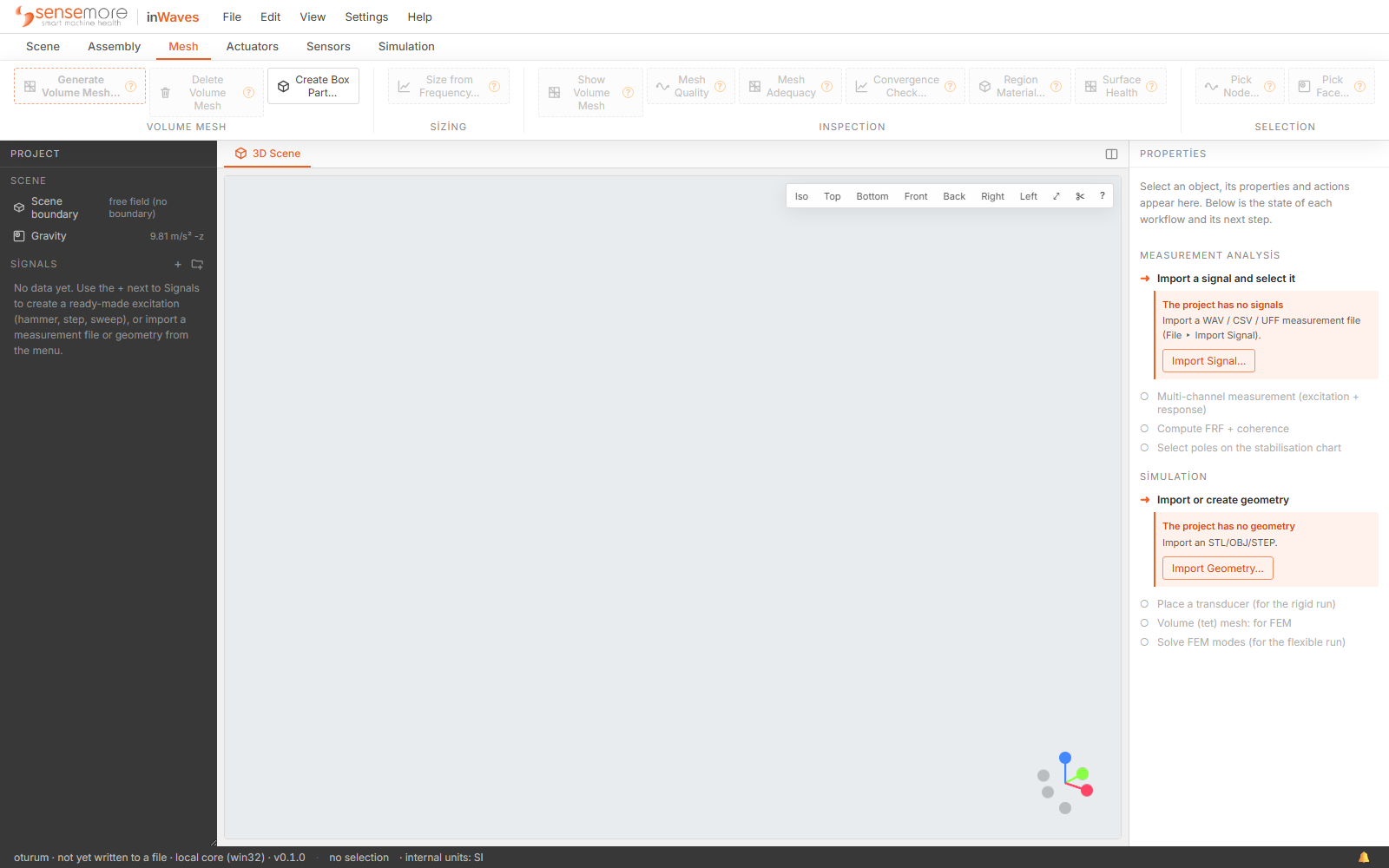
The ribbon
The table lists the groups in each tab and the buttons a first-time user needs. The rest are in the workflow chapters.
| Tab | For | Groups and notable buttons |
|---|---|---|
| Scene | What the model is made of, and what acts on it | Model setup: Add Support, Add Force, Add Torque, Add Pressure, Add Rotation. Structural members: Add Beam…, Add Shell…, Point Mass… |
| Assembly | How parts are joined into one moving unit | Constraint: Connect… |
| Mesh | Turning geometry into elements, and judging them | Volume Mesh: Generate Volume Mesh…, Create Box Part…. Sizing: Size from Frequency…. Inspection: Mesh Quality, Mesh Adequacy, Surface Health. Selection: Pick Node…, Pick Face… |
| Actuators | What drives the model | Actuators: Transducer, Loudspeaker |
| Sensors | What records it | Sensors: Microphone, Accelerometer |
| Simulation | Turning the model into an answer | Solve: ▶ SOLVE. Individual solvers: Solve Modes, Solve Static, Solve Buckling, FRF Sweep…. Acoustic Solve: Choose acoustic method… |
▶ SOLVE is the front door: it looks at the scene, asks which analyses apply, and runs the selected ones in the right order. The individual solvers run one analysis with its own detail dialog.
A ribbon button that cannot do its job is not greyed out. It carries a small ? and still responds. Clicking it gives the reason (“No part has a volume mesh”), what is missing (“Mesh a part first”), and where one exists, a button that performs the fix.

The menu bar
| File | New Project, Open… (.iwp), Save, Save As…, and all three imports: Import Signal… (WAV/CSV/UFF), Import Geometry… (STEP/IGES/STL/OBJ) and STEP/IGES → Tet Mesh… (gmsh). |
|---|---|
| Edit | Undo and Redo, each naming the operation it will reverse; Delete Selection; Clear Selection. |
| View | The panel toggles, Split View (3D + chart), the display switches Sensor Labels, Fade Others on Selection and Transparent Shells (see inside), the seven camera presets, Fit to Model, and shortcuts to the Scene Ribbon, Mesh Ribbon and Simulation Ribbon. |
| Settings | Simulation Settings… (solver knobs, GPU, environment, privacy; machine-local, never stored in a project) and License…. |
| Help | Keyboard Shortcuts, Send Feedback… and About. |
The project tree
Two sections carry most of a project: Signals and Scene parts. Supports, loads, sensors, selections, bonds and mode sets appear under the part they belong to, so a part shows its whole setup without being opened.
- Rows carry their buttons inline: an eye that reads Hide or Show, and a delete button whose tooltip names what will go (Remove support, Remove load, Remove loudspeaker).
- F2 or a double-click renames a row in place.
- Drag a signal or a part onto a folder to move it there; Add folder on a section header makes one. Folders are organisation only.
- The + on the Signals header is Create signal (hammer, step, sweep…): how a project with no measurement file gets its first excitation.
- There is no right-click menu. Everything a row can do is on the row or in the properties panel.
The properties panel
Select an object and this panel becomes its editor: a material with its E, ν, ρ and ζ; a mode set with its frequency table; a signal with its channels, charts and export buttons.
With nothing selected it shows a checklist of the two journeys through the product, each step marked done, next or later. Measurement Analysis runs Import a signal and select it → Multi-channel measurement (excitation + response) → Compute FRF + coherence → Select poles on the stabilisation chart. Simulation runs Import or create geometry → Volume (tet) mesh: for FEM → Solve FEM modes (for the flexible run), with Place a transducer (for the rigid run) as an alternative route, not a prerequisite. Clicking the next step explains what is blocking it.
The 3D view
The world is Z-up, the mechanical CAD convention SolidWorks, Inventor, NX and gmsh all author in. Imported models are never rotated to suit the viewer.
| Left drag | Orbit |
|---|---|
| Right drag | Pan |
| Wheel | Zoom |
| F | Fit the model to the view |
| Esc | Clear the selection, or cancel a pick that is in progress |
| Axis triad | The triad in the corner is clickable: hit an axis to snap the camera to it |
The viewport toolbar repeats the seven camera presets (isometric, top, bottom, front, back, right and left), then a fit button, a section tool and a ? chip that toggles a Camera cheat-sheet. The section tool opens a Clip control: an axis (X, Y or Z), a slider for the plane, and a flip. It cuts a closed body open and changes nothing about the model.
When a run has produced fields to draw, a Layers menu appears with a Structure section (which field is painted on the part) and a Flow section (air particles, slices, streamlines, vortices, volumetric smoke). Layers with no data do not appear.
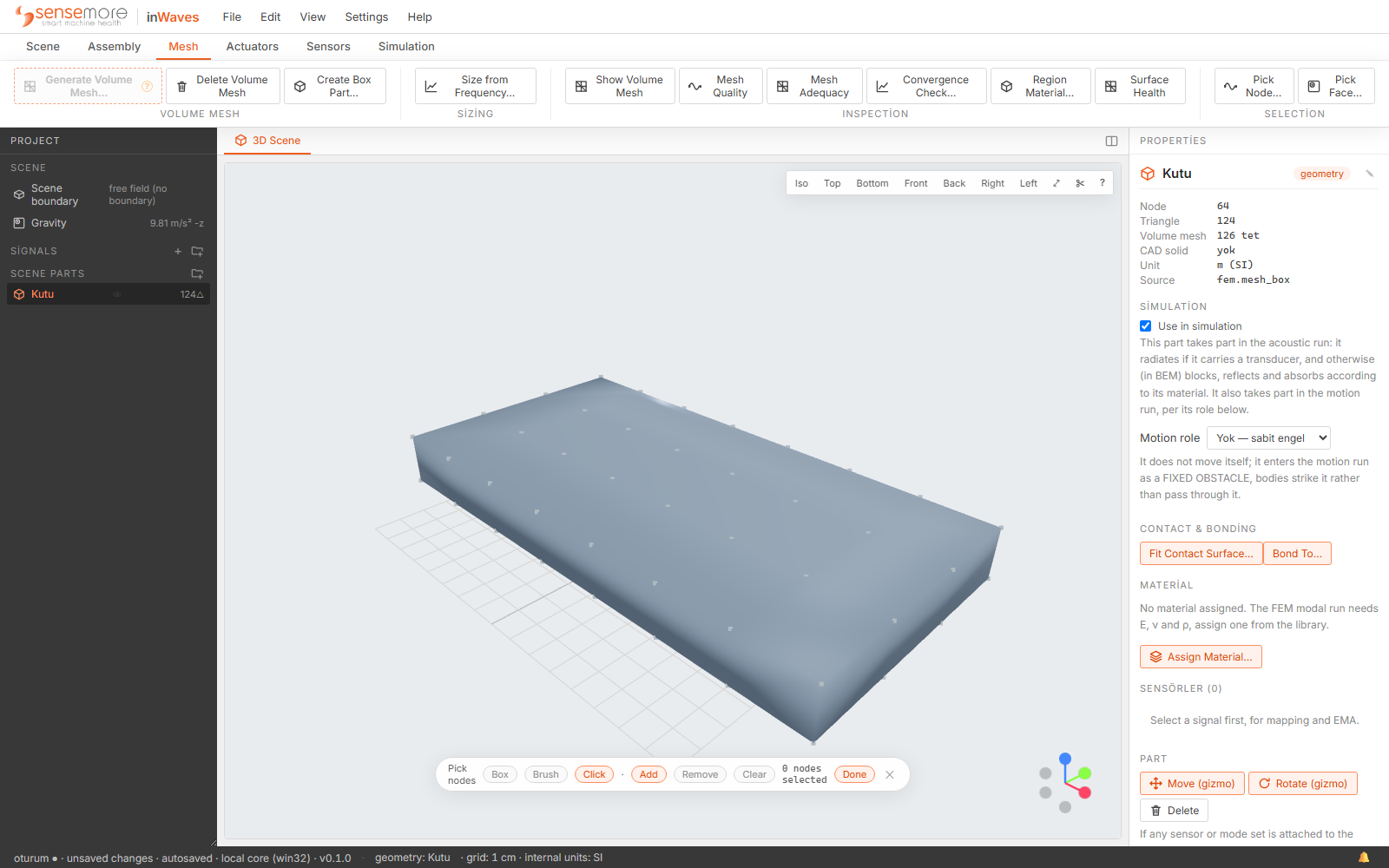
Charts and tabs
Chart types depend on the workflow: spectra and FRFs for measurements, mode tables and stress fields for FEM, echograms and directivity for acoustics. Each is described in its own chapter. Three behaviours are common:
- Tabs close with the ✕ on the tab.
- A tab can be pinned: Pin this tab: the next run opens a new one. Unpinned, a repeat run replaces the chart in place, so pin a tab you want to compare against.
- Split View (3D + chart) puts a chart and the 3D scene side by side, with a draggable divider. It is the only way to watch a mode animate and read its number at once.
The status bar
Left to right: the project name, a ● while there are unsaved changes, and the save state in words: unsaved changes · autosaved, saved with a time, or not yet written to a file. The working file is autosaved on the desktop build. Then the current selection, the grid spacing, and a readout that never changes: internal units: SI. Dialogs may ask for millimetres, but everything is stored and computed in SI.
Notifications
Messages arrive as toasts in the corner. Information and success toasts dismiss themselves after a few seconds, and hovering pauses the clock. Errors and blocked-action guidance are sticky. A guidance toast carries the reason, what is missing, and often a button that fixes it in one click.
At most four toasts are on screen at once, and the oldest is evicted silently. The bell at the right end of the status bar keeps the session's history with timestamps, and raises an unread count for errors that arrive while the panel is closed.
Keyboard shortcuts
| Ctrl+N | New project |
|---|---|
| Ctrl+O | Open project |
| Ctrl+S | Save |
| Ctrl+Shift+S | Save as |
| Ctrl+I | Import signal |
| Ctrl+Z | Undo |
| Ctrl+Y · Ctrl+Shift+Z | Redo |
| Ctrl+1…9 | Switch to the n-th tab |
| Del | Delete the selected object |
| Esc | Clear the selection, or cancel the action in progress |
| F | Fit to model |
| F2 | Rename the selected row in the project tree |
Shortcuts are ignored while you are typing in a field and while a dialog is open. F2 works but is not listed in Help ▸ Keyboard Shortcuts; the table above is the complete set.
Next: your first analysis. A model, a mode and a number, in about fifteen minutes.