
Manual · Chapter 1
Install & activate
Fifteen minutes, most of it download time. You need a Windows machine, a customer portal account, and an internet connection at every launch.
What the machine needs
| Operating system | Windows 10 or 11, 64-bit (x64). There is no macOS or Linux build. |
|---|---|
| Memory | 16 GB RAM recommended. The largest example project that ships with inWaves wants 4 GB by itself, so 8 GB leaves little room beside it. |
| GPU | Optional. An NVIDIA GPU with CUDA accelerates the flow solver and the Rayleigh radiation step. Without one the same build solves everything on the processor, just slower. |
| Network | An internet connection at application launch. Solving is entirely local. |
The same requirements are on the download page.
Get the installer
Builds live in the customer portal, behind an account with a licence attached. A trial licence counts.
Create an account and verify your e-mail address, or sign in if you already have one.
Attach a licence to the account: start the 30-day trial, or enter the key you were sent after purchase.
Open the downloads page and take the current build. There is one, and it uses CUDA when a suitable card is present.
Every build is listed with its version, its release notes and a SHA-256 checksum.
Check what you downloaded
Compare the checksum before you install:
PS> Get-FileHash .\inwaves-setup.exe -Algorithm SHA256If the value does not match the one shown next to the build in your portal session, do not run the file. Download it again, and if it still differs, tell us.
The SmartScreen warning
Our installers are not code-signed yet, so Windows SmartScreen will say the publisher is unknown. Verify the checksum first, then choose More info and Run anyway. Code signing is on the roadmap.
First launch: the licence gate
The first thing inWaves shows is a window that cannot be dismissed. Esc and clicking outside do nothing. It asks for your License key, in the form IW-XXXX-XXXX-XXXX-XXXX. The field upper-cases what you type and strips pasted spaces.
Press Activate (or Enter). The button reads Validating… while the machine talks to the licence server. On success the gate closes and the welcome screen appears. Open the license portal opens your portal in the system browser, where most of the problems below are fixed.
What each message means
| The key looks invalid | The key is empty, mistyped, or unknown to this server. Copy it from the portal rather than retyping it. |
| This license has been revoked. Contact support | The licence was withdrawn on the server. Nothing on your machine can fix this; get in touch. |
| The license has expired | The end date has passed. Renew or convert the trial in the portal, then activate again with the same key. |
| Seat limit reached: release a machine from the portal | Every seat on this licence is already bound to a machine. Free one in the portal (or on the old machine, see below), then press Activate again. |
| A trial has already been used on this machine | This computer has activated a trial licence before. A second trial on the same hardware is not granted, whatever account asks for it. Buy a licence, or use another machine. |
| The key is not active on this machine: activate it again | The key is valid but this machine is not bound to it, usually after a seat was released. Pressing Activate re-binds it. |
| Cannot reach the license server. Check your internet connection | Network, proxy or server trouble, not a licence problem. A Retry button appears here and nowhere else. |
inWaves validates its licence online each time it starts. There is no offline mode: a machine that cannot reach the internet at launch will not get past the gate. This is deliberate (ADR 0003). Past the gate everything runs locally, and losing the connection mid-session does not interrupt a run.
If you work on an air-gapped machine, in a secure lab, or on a site with no connectivity, inWaves cannot start there. Plan your licence around machines that see the internet at launch time.
The privacy question
On the first launch after activation, Help us improve the product asks whether anonymous usage data may be sent.
- Collected, if you agree: application start and exit, the name and duration of each command you run, and crash reports.
- Never collected: project contents, file paths, personal data. Paths and user names are scrubbed on your machine before anything is sent.
I accept turns it on; No, thanks, Esc and clicking outside all mean no. The default is off and the question is asked once. Change it later under Settings ▸ Simulation Settings… ▸ Privacy, with the switch labelled Send anonymous usage data. Privacy notice (KVKK) opens the full notice in your browser.
Feedback is a separate channel: Help ▸ Send Feedback… reaches the development team whether usage data is on or off.
Moving to another machine
A seat is bound to the machine that activated it. Release the old seat first.
On the old machine, open Settings ▸ License… and press Release this machine. The seat is freed, and inWaves will ask for activation the next time it starts here.
If the old machine is gone or unreachable, release the seat from the portal instead.
On the new machine, enter the same key at the gate and press Activate.
The same window shows the licence: Key (masked), Plan (Trial or Full), Expiry date (perpetual when there is none) and the Machine ID this seat is bound to.
The trial
Thirty days, one seat, one machine. One trial per verified account, and the machine lock is enforced independently: a computer that has already run a trial will not get another under a different e-mail address. Nothing is feature-gated.
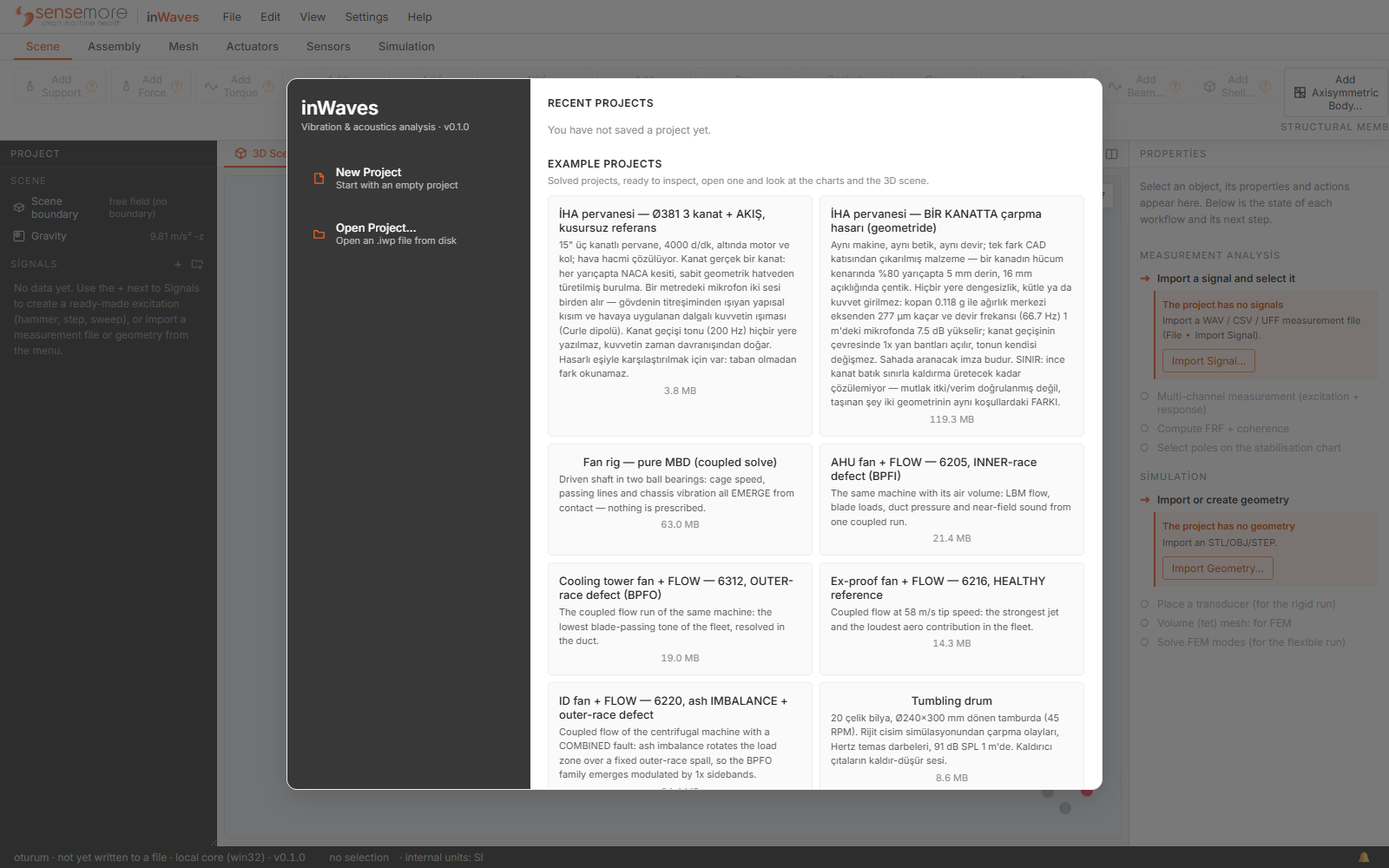
Two checks. After the gate closes the application opens on its welcome screen, offering New Project, Open Project… and a row of Example Projects. Then Help ▸ About shows the version and a capabilities line, Capabilities: STEP · gmsh · BEM · GPU, each with a tick or a cross. A cross next to gmsh means volume meshing from CAD is unavailable until you install gmsh separately. A cross next to GPU means no usable CUDA device was found; every run uses the CPU. Neither breaks the install. Both limit what the next chapters can do.
Next: the interface, and what every part of the window is for.