
Manual · Chapter 3
Your first analysis
About fifteen minutes, no CAD file needed. You will build a small steel plate, clamp one end, solve its natural frequencies, watch one mode move, then run a check that could prove the result wrong.
-
Look at a finished project first. On the welcome screen, open anything under Example Projects. They are solved and ready to inspect: click rows in the tree, open the result tabs, orbit the scene with the left mouse button. Nothing you do here can spoil the file.
-
Start a clean project. File ▸ New Project.
-
Make a meshed part. Go to the Mesh ribbon tab and press Create Box Part…. Accept the defaults except where noted:
Name = Plate, Length X = 200, Length Y = 100, Length Z = 20, Divisions X = 8, Divisions Y = 4, Divisions Z = 2. Confirm the dialog.
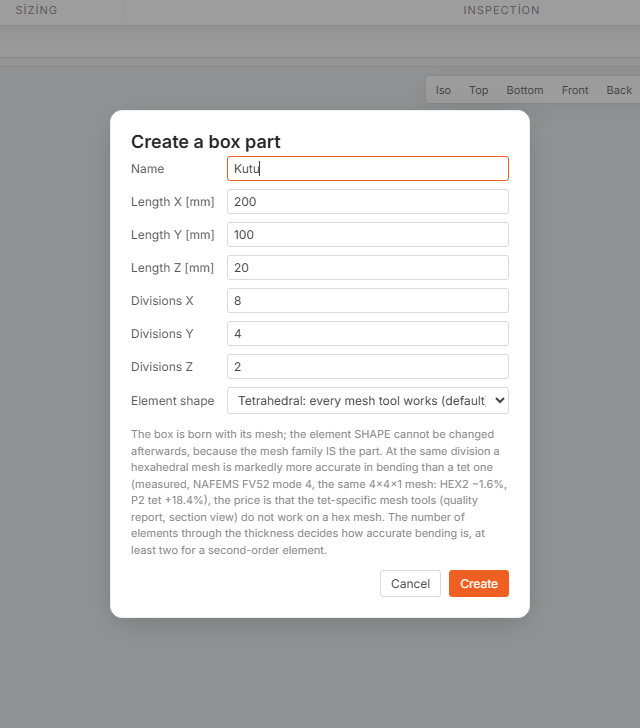
The element shape at the bottom is the one choice here you cannot revise later, which is why the rest of this chapter assumes the tetrahedral default. The part appears under Scene parts, already meshed. Divisions Z is 2 because a single element through the thickness cannot carry bending.
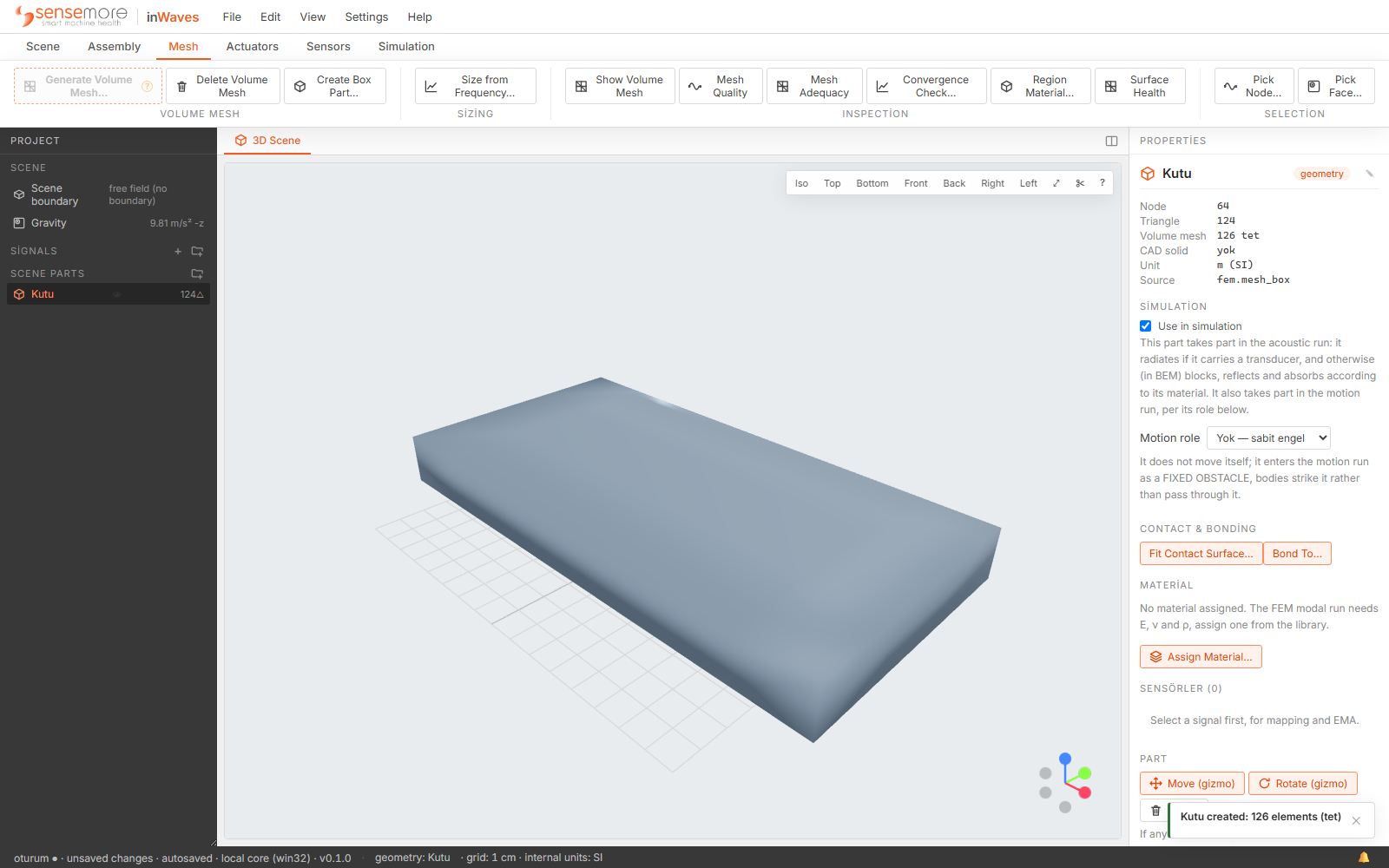
The counts at the top of the properties panel are how you confirm a mesh exists at all, and the material section just below is the next thing to fill in. -
Note where the units change hands. You typed millimetres. inWaves stores and computes in SI, which is why the status bar says internal units: SI permanently. Every field carries its unit in the label and results come back in Hz, Pa, m/s², so you convert nothing yourself. You do have to read the label: in a field marked [mm], 200 is 0.2 m and 0.2 is a plate a fifth of a millimetre long.
-
Give it a material. Select the part in the tree. In the properties panel, under Material, press Assign Material…. Pick the built-in structural steel (S235: E = 210 GPa, ν = 0.30, ρ = 7850 kg/m³) and press Assign.
The panel now shows E, ν, ρ and ζ. The material is copied onto the geometry, so later library edits do not change an analysis you have already run. Assign one to every part: without a material the modal solve quietly falls back to a steel default.
-
Save a node selection where the clamp will go. Still on the Mesh tab, press Pick Node… and choose the part. The scene fades everything else and a Pick nodes pill appears with a rectangle tool, a Brush and a Click tool.
Rotate so you are looking at the face at X = 0, drag a rectangle over the nodes on that face, and confirm. Name the selection Clamped end.
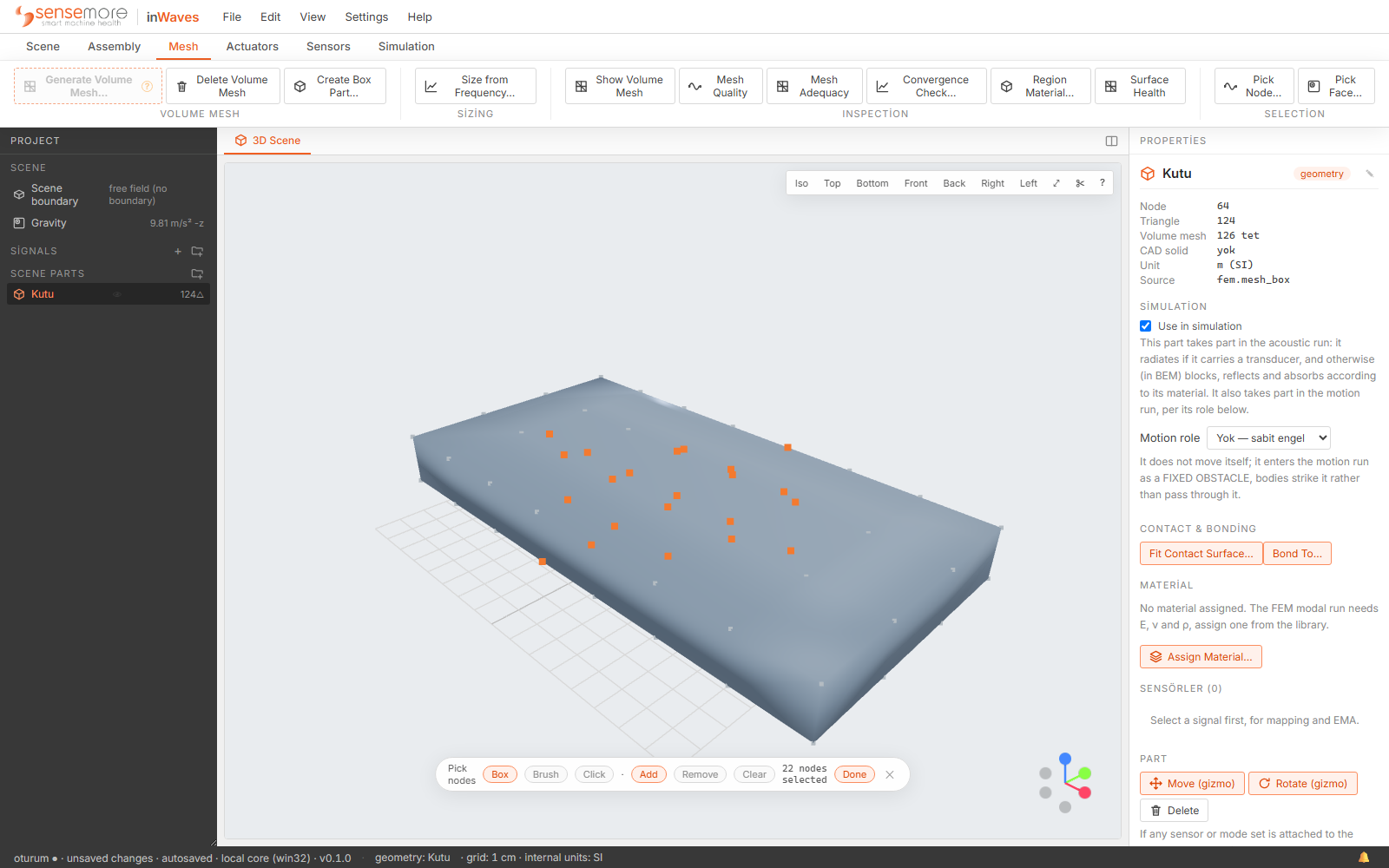
The count on the pill updates as you drag, and it is the quickest way to notice that a rectangle also caught the nodes on the far side of the part. Supports, forces and sensors only ever attach to a saved selection. It stores positions, so it survives a remesh and you can reuse it for a load later.
-
Clamp that end. Go to the Scene tab and press Add Support. Choose the part, then set Region to Clamped end. Leave all six boxes ticked (Direction X (u_x = 0), Direction Y (u_y = 0), Direction Z (u_z = 0), Rotation X (θ_x = 0), Rotation Y (θ_y = 0), Rotation Z (θ_z = 0)) and leave Isolator stiffness [N/m] (empty = rigid) empty. That combination is a rigid, fully fixed support. Confirm.
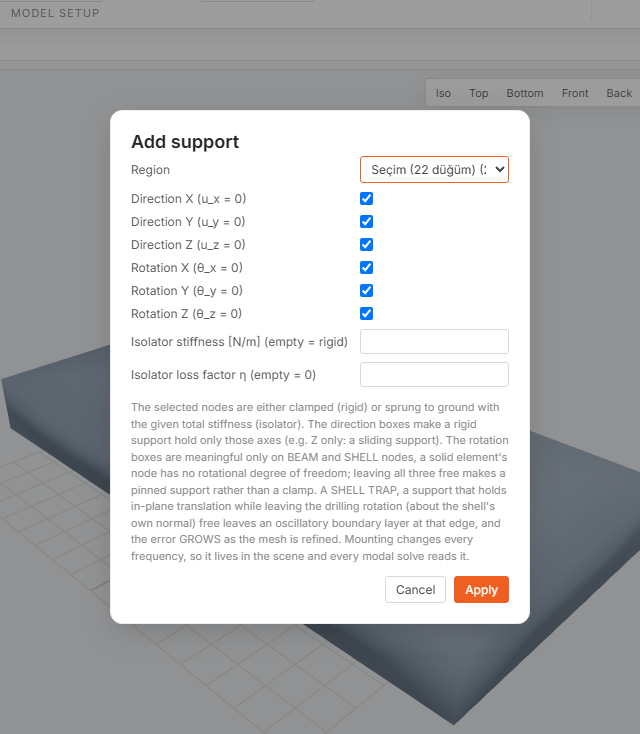
Leaving the isolator fields empty is what makes the support rigid; type a stiffness there and the six boxes lock, because a spring acts on every axis at once. -
Solve the modes. Go to the Simulation tab and press Solve Modes. Select the part, then leave Where the mode set ends on A fixed number of modes and set Mode count = 8. Confirm.
Read the note in the dialog before you run: it should say the support clamps the part. If it says the run will be free-free, the support did not land on this part. Go back to step 7.
-
Read the table. When the run finishes a mode set appears under the part. Select it. The properties panel lists the modes with f [Hz] and damping ratio ζ [%], plus a filter box that accepts 80-300, >1000, <100 or a single value. CSV exports the table.
-
Watch one move. Press the play button on the first row; its tooltip reads Animate. The part deforms in the 3D scene, coloured by displacement with the peak normalised to 1. A mode shape has no absolute size, so colour shows where it moves, never how far.
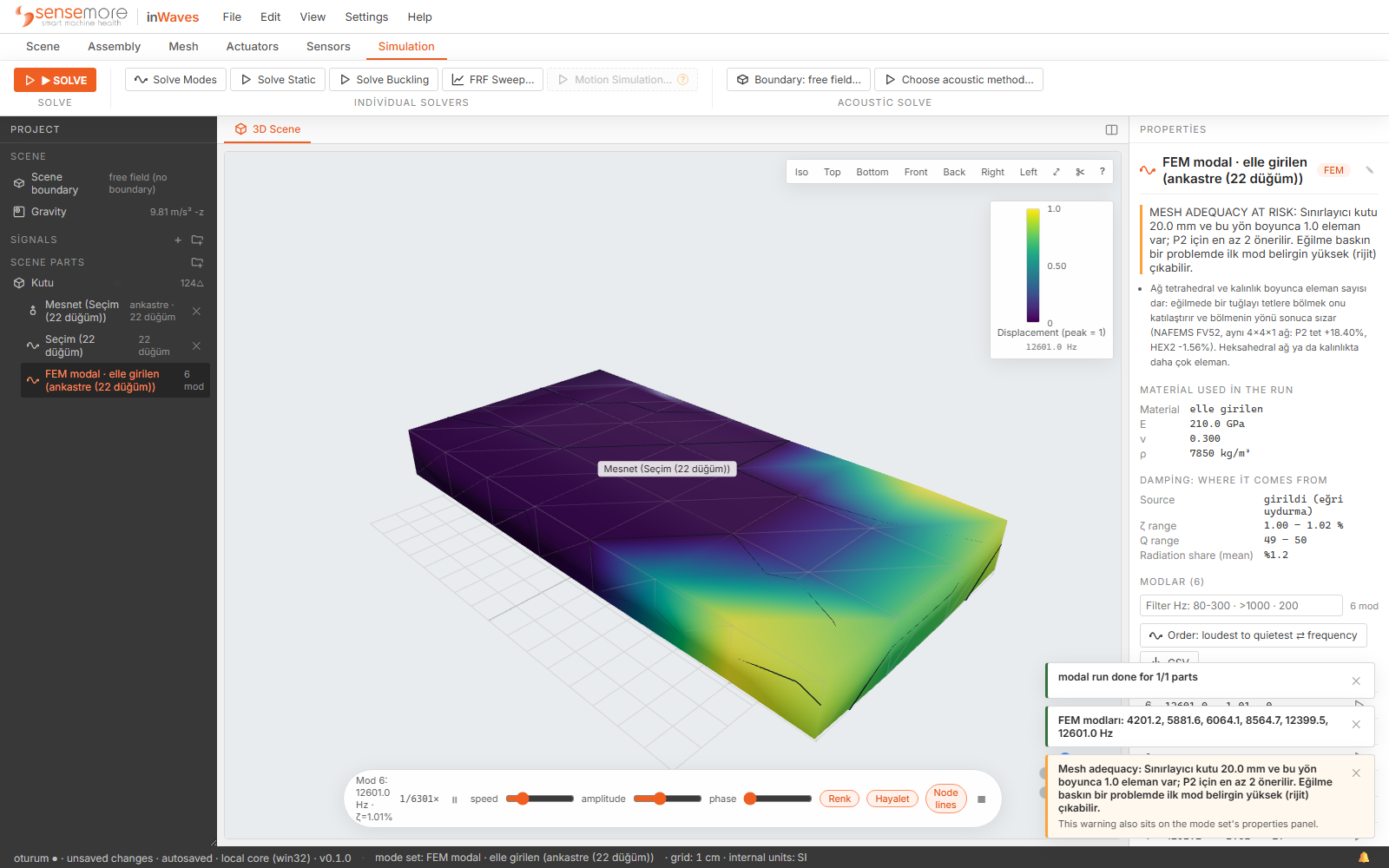
The playback bar carries speed, amplitude and phase sliders; amplitude exaggerates the drawing only and changes no number in the table. Turn on View ▸ Split View (3D + chart) to see the table and the animation together. The first mode of a clamped plate should be the free end swinging up and down in Z. If it is anything else, your support is on the wrong face.
-
Save. Ctrl+S, or File ▸ Save. Choose a location; the status bar switches to saved with a timestamp. Geometry, mesh, material, support and mode set are all in the single
.iwpfile.
Rigid-body count. Delete the support (select it in the tree, press Del) and run Solve Modes again with 10 modes. The dialog note will now say free-free. An unheld body has exactly six ways to move without deforming, so the first six frequencies must come back at or near 0 Hz and mode 7 is the first elastic mode. Five, seven, or a first mode at 40 Hz means something is still holding the part, and the whole model is suspect.
Thickness scaling. Put the support back, note the first frequency, then build a second box identical except Length Z = 40 and solve it the same way. For a cantilever the first bending frequency goes as thickness over length squared, so doubling the thickness should roughly double it. A ratio near 1 means the clamp is not doing anything; near 4 means you are reading a different mode. Expect a little under 2: at this stubby length-to-thickness ratio, shear deformation takes a few percent off.
Natural frequencies are a property of the structure alone. They say where it will ring, not how hard; how hard needs an excitation and a damping value, which is the frequency-response run. A mesh this coarse is trustworthy only for the first few modes, since higher modes have shorter wavelengths than these elements can carry. Mesh Adequacy on the Mesh tab tells you the frequency up to which this mesh means anything.